
Your job deadline is in 20 minutes and your resume file is nowhere on your hard drive. You spent hours building out your LinkedIn profile, but that does not automatically mean the file is sitting somewhere you can grab it fast. The good news: you can download resume from LinkedIn in under two minutes, on desktop or mobile, once you know the exact click path.
The catch most people hit is a broken download that opens a blank page or a mangled PDF. That problem almost always comes down to one thing: the wrong browser. Chrome or Firefox will fix it instantly. This guide covers the full process, the two different resume types LinkedIn holds for you, and every fix if something goes wrong.
What LinkedIn Actually Saves as Your Resume (Before You Download Anything)
LinkedIn holds two completely different files, and most people confuse them. Knowing which one you are about to download saves you from sending a recruiter a PDF that looks nothing like your actual resume.
The Resume You Uploaded vs. the Profile PDF LinkedIn Generates
Type | Source | Formatting | Availability
Uploaded Resume | File you added when applying to jobs on LinkedIn | Retains your original formatting exactly | Only available if you applied to at least one job via LinkedIn
Profile PDF | Auto-generated from your current LinkedIn profile sections | LinkedIn's default layout, no custom design | Always available to any LinkedIn member
These are not interchangeable. The uploaded resume is the file you built in Word or Google Docs. The profile PDF is what LinkedIn stitches together from your headline, work history, and education sections right now.
Why Your Downloaded Resume Might Look Nothing Like Your Profile
If you updated your LinkedIn profile last week but uploaded your resume two years ago, the downloaded file reflects the older version. LinkedIn does not sync the two. Your uploaded resume is frozen at the moment you added it.
This matters for a linkedin job seeker profile because recruiters who request a resume expect it to match what they see on your profile. Check the date on your uploaded file before you send it anywhere.
How to Download Your Resume from LinkedIn on Desktop (Step-by-Step)
This is the fastest path to getting your uploaded resume file out of LinkedIn and onto your computer. Five clicks, no detours.
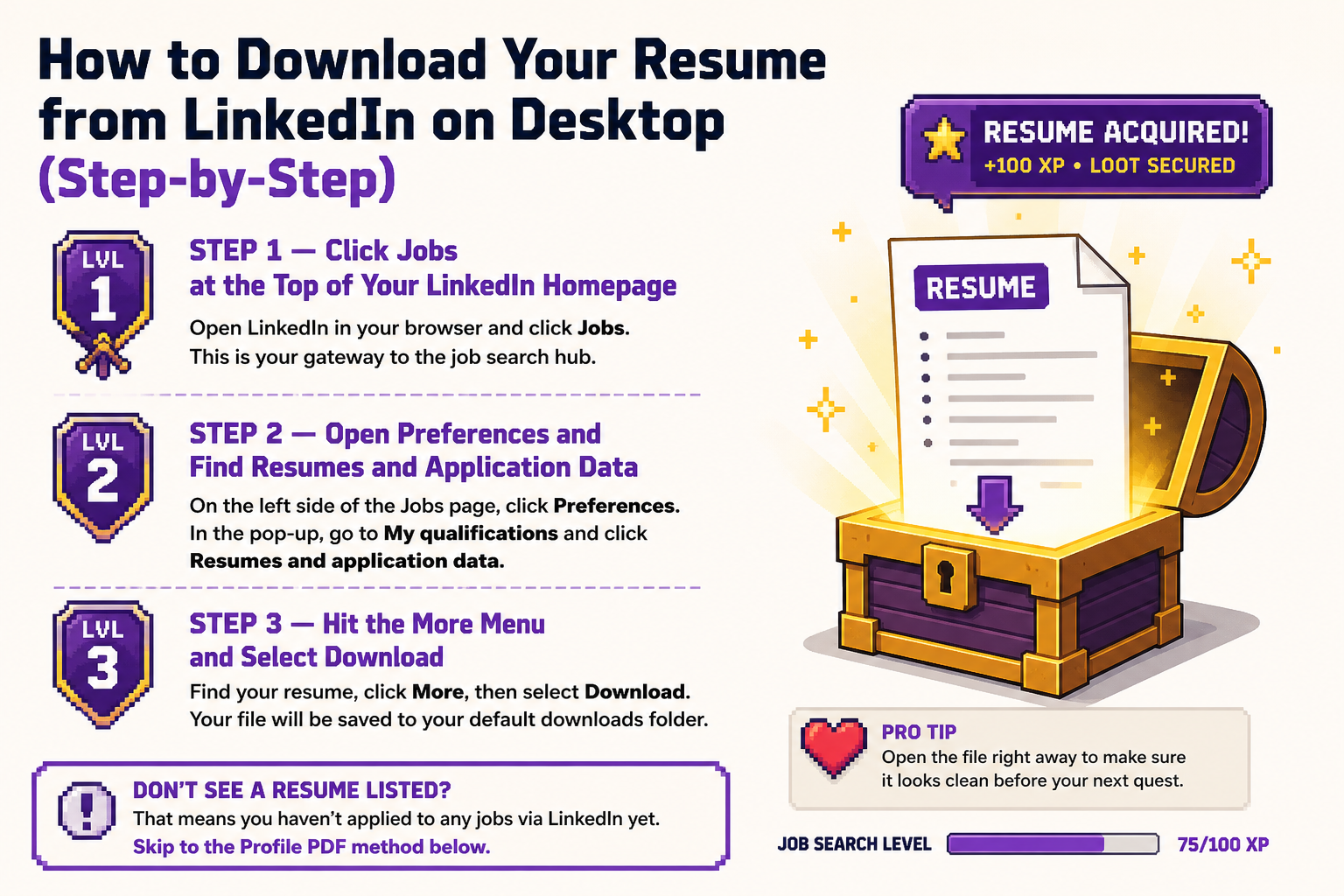
Step 1 — Click Jobs at the Top of Your LinkedIn Homepage
Open LinkedIn in your browser and look at the top navigation bar. Click Jobs. This takes you to the job search hub where your application history and saved files live.
Do not click your profile icon or the Me menu. Those sections do not contain your resume files.
Step 2 — Open Preferences and Find Resumes and Application Data
On the left side of the Jobs page, click Preferences. A pop-up window opens. Inside that window, look for the section labeled My qualifications and click Resumes and application data.
This is the only place in LinkedIn where your uploaded resume files are stored. If you have applied to multiple jobs, you may see more than one file listed here.
Step 3 — Hit the More Menu and Select Download
Find the resume you want. Click the More button to the right of that file. A short dropdown appears. Select Download.
Your browser will save the file to your default downloads folder. Open it immediately to confirm the formatting looks correct before attaching it to an application.
Don't see a resume listed? That means you haven't applied to any jobs via LinkedIn yet. Skip to the Profile PDF method below.
The full desktop path as a quick reference:
- Click Jobs in the top navigation
- Click Preferences in the left pane
- Click Resumes and application data under My qualifications
- Click More to the right of your resume
- Select Download
How to Download Your LinkedIn Resume on Mobile
The mobile flow mirrors the desktop steps but the layout looks different enough to cause confusion. This is how to get through it on iOS or Android without losing time.
Tapping Through the Mobile Jobs Icon to Preferences
- Tap the Jobs icon in the bottom navigation bar of your LinkedIn app
- Tap the Preferences button at the top of the page
- Tap Resumes and application data under the My qualifications section
- Tap More to the right of the resume you want
- Tap Download
The file will save to your phone's downloads folder or open a share sheet depending on your device settings.
Mobile Limitation Worth Knowing Before You Apply
Mobile downloads work fine when you need to send a file quickly. The limitation shows up when something looks off in the formatting. Pinching and zooming on a PDF does not tell you much, and editing on a phone is slow.
Mobile downloads are fine for sending a file quickly. For formatting fixes, open a laptop. It is worth it.
3 Fixes When Your LinkedIn Resume Download Fails or Looks Broken
You followed every step and the download still failed or the file opened with garbled text and missing sections. Here are the three fixes that resolve the most common problems, starting with the one that works most of the time.
Fix 1 — Switch to Chrome or Firefox If the Download Stalls
If the download triggers a blank page or nothing happens at all, the browser is the problem. LinkedIn download cv functionality is fully supported in Chrome and Firefox. Safari and some Chromium-based browsers occasionally block the file or fail to trigger the download prompt.
Switch browsers first. This single change resolves the majority of failed download attempts.
Fix 2 — Clear Browser Cache for a Clean Re-Download
If switching browsers does not help, clear your browser cache and try again. A corrupted cache can intercept the download request and return a broken or empty file.
In Chrome, go to Settings, then Privacy and Security, then Clear browsing data. Select cached images and files, clear them, then return to LinkedIn and retry the download.
Fix 3 — Remove Unusual Symbols From Your Profile to Fix Formatting Corruption
This is the least-known fix and the one most likely to affect job seekers who used decorative characters, emoji-style bullets, or non-standard punctuation in their profile sections. When LinkedIn generates a PDF from your profile, those characters break the encoding and produce symbols or blank spaces in the output.
Go into your profile and scan the summary, job titles, and bullet points for anything that is not a standard keyboard character. Replace them with plain text equivalents, then re-download.
Fixing a broken download is a boss fight you should not have to fight twice. Once your resume is out of LinkedIn's vault, tools like Elip's AI job agent take it from there, scanning listings 24/7 in your messaging app, filtering ghost postings, and making sure you apply first before 50 other candidates even see the role.
How to Download Your Profile as a PDF When You Never Uploaded a Resume
No uploaded resume in LinkedIn means you take the profile PDF route. This is always available and takes about two clicks, but the quality of what you download depends entirely on how complete your profile is before you export it.
Saving Your Profile as a PDF in Two Clicks
Go to your LinkedIn profile page. Click the More button just below your profile photo and headline. Select Save to PDF from the dropdown. LinkedIn generates the PDF immediately and your browser downloads it.
The file pulls in every section of your current profile: headline, summary, work experience, education, skills, and certifications. What you see in your profile is exactly what goes into the PDF.
What to Check on Your Profile Before You Download It as a Resume
Your linkedin profile score is a useful starting point, but treat it as a floor, not a ceiling. Run through this checklist before you export:
- Single column format is already handled by LinkedIn's PDF layout. What you control is the content in each section. Make sure each role has clear, results-focused bullet points rather than job description language.
- Contact info must include your email, phone number, and your LinkedIn URL typed out in full. Recruiters who receive a PDF version of your profile cannot click through to your profile from a printed page. Spell out the full URL so it is still useful offline.
- Your headline and summary should reflect the specific role you are targeting. A generic headline like "Software Engineer" gives a recruiter no reason to keep reading. Using a linkedin optimization tool or linkedin profile optimization tool can help you identify gaps in your headline and summary before you lock in the PDF.
A linkedin profile for job seekers that converts well on paper follows the same principle as a strong resume: specificity beats breadth every time.
Your Resume Is Out. Now What?
You have the file. The real decision starts now.
Path A is the manual route. Upload your resume to a dozen job boards, set up alerts on three platforms, monitor linkedin saved jobs every morning, and try to beat the 50 applicants who saw the same posting two hours before you. Many of those listings are ghost jobs that were never real. That is the grinding path, and it burns time that could go toward interview prep.
Path B is choosing fast travel. An AI agent runs the search layer while you focus on conversations that actually move forward. No more tab-switching, no more stale listings, no more finding out a role closed before you even applied.
Try Elip free. It runs in your messaging app, finds matched roles before the queue fills up, and never charges you a cent. Your resume is already ready. Let the agent do the grinding.